Newsletter Subscribe
Enter your email address below and subscribe to our newsletter

 ByJohn A
When a site is slow or unreachable, ping tells you that something is wrong. Traceroute tells you where. It lists every router between you and the destination, with the time each one took to answer, so you can see whether the delay starts on your own network, at your ISP, or somewhere near the server.
This guide covers the traceroute command on all three major operating systems, the options worth knowing, and how to read the output without jumping to the wrong conclusion.
Every IP packet carries a Time To Live (TTL) value. Each router that forwards the packet lowers it by one, and when it reaches zero the router discards the packet and sends back an “ICMP Time Exceeded” message.
Traceroute uses that on purpose. It sends packets with a TTL of 1, then 2, then 3 and so on. Each router along the path reveals itself by replying when the TTL runs out. By default, it sends three probes per hop, which is why you see three times on each line.
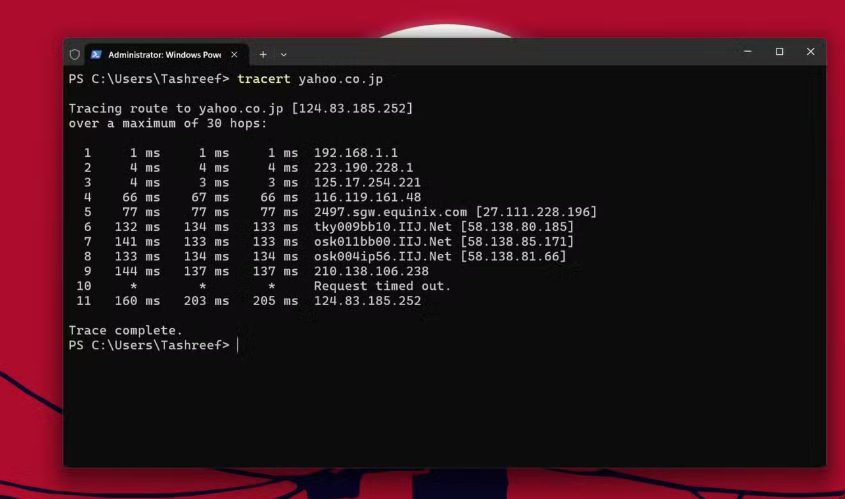
Open Command Prompt or PowerShell and run:
tracert example.com
Useful options:
Windows tracert uses ICMP echo requests. For packet loss statistics per hop, Windows also includes pathping, which runs a traceroute and then samples each hop for a few minutes.
Open Terminal and run:
traceroute example.com
Useful options:
Older macOS versions had a graphical Network Utility app with a traceroute tab. It’s gone from recent releases, so Terminal is the way now.
Many minimal distributions don’t ship traceroute by default. Install it first:
sudo apt install traceroute # Debian, Ubuntu
sudo dnf install traceroute # Fedora, RHEL, Rocky
Then:
traceroute example.com
Linux traceroute has the most options:
| Task | Windows | macOS | Linux |
| Basic trace | tracert host | traceroute host | traceroute host |
| No DNS lookups | tracert -d host | traceroute -n host | traceroute -n host |
| Use ICMP | Default | traceroute -I host | sudo traceroute -I host |
| Use TCP to a port | Not built in | Not built in | sudo traceroute -T -p 443 host |
| Loss per hop | pathping host | Install mtr | mtr host |
| IPv6 | tracert -6 host | traceroute6 host | traceroute -6 host |
Here’s a typical (shortened) result:
1 192.168.1.1 1.2 ms 0.9 ms 1.1 ms
2 10.20.0.1 8.4 ms 7.9 ms 8.2 ms
3 core1.isp.net 12.1 ms 11.8 ms 12.4 ms
4 * * *
5 ix.fra.example 24.0 ms 23.7 ms 24.2 ms
6 edge.ams.example 28.1 ms 120.4 ms 27.9 ms
7 example.com 28.6 ms 28.3 ms 28.9 ms
Rules of thumb:
A traceroute from your laptop only shows your path. Internet routing is often asymmetric: traffic from the server back to you can take a completely different route. And when a user in another region reports problems, your own trace tells you nothing about their path.
That’s where running a traceroute online helps. A traceroute online tool runs the trace from a server elsewhere on the internet towards your host and shows every hop with its round-trip time. Use it to:
Traceroute won’t fix the network, but it turns “the internet is slow” into “the delay starts at hop 5, inside the transit provider”, and that’s a problem someone can actually solve.