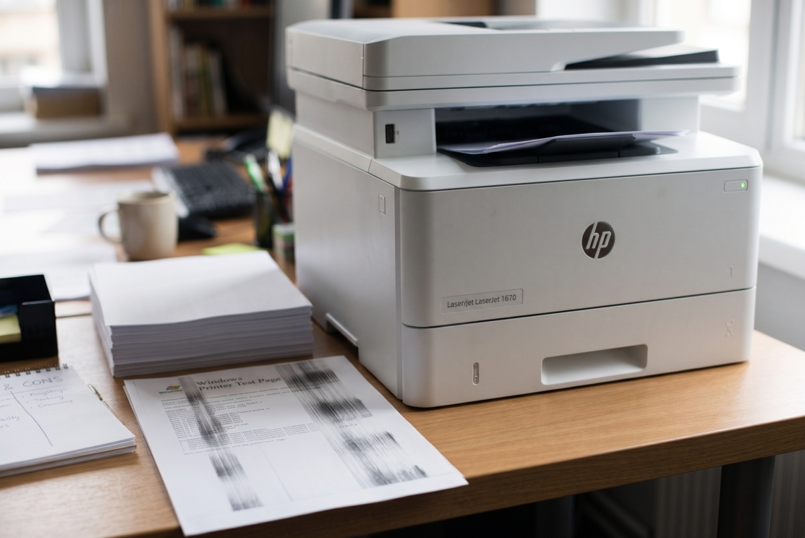

You print a page and it looks wrong. There are thin lines running down it. Or the text is so pale you can barely read it. Either way, it looks sloppy.
Don’t worry. This is one of the most common printer problems, and it’s usually easy to fix. Very often the cause is the cartridge. A worn or poor-quality one is the first suspect, and swapping it for the right HP toner cartridges for your model can solve the problem in minutes. But not always. Let’s work out what’s going on.
What Does Your Page Look Like?
The mark on the page is a clue. Here’s a quick guide:
- Faded or light text: Usually low toner.
- Thin vertical lines: Often a damaged cartridge or dust inside.
- Repeating marks down the page: Usually a worn drum or roller.
- Smudges that rub off: Often damp paper or a tired fuser.
- Grey or dirty background: Poor toner or a worn part.
- White patches: Uneven toner or paper problems.
Hold your page up. Match it to the list. Then try the fixes below.
Why Prints Go Faint or Streaky
A few usual causes:
- Toner is running low
- The cartridge is old, damaged or leaking
- Dust and paper bits have built up inside
- Damp or cheap paper
- A dirty or worn drum, roller or fuser
- Toner-save or draft mode is switched on
Most are quick to check.
7 Fixes to Try
Fix 1: Check the Toner Level
Faded text often just means low toner. Check the level on the display, or print a status page. If it’s low, take the cartridge out and rock it gently from side to side. That spreads the powder and can give you a few more pages. Do it over a sheet of paper in case of spills.
Fix 2: Turn Off Toner-Save Mode
This one catches people out. Draft or economy mode makes prints lighter on purpose. Open your print settings and switch to normal quality. If your prints suddenly look better, you’ve found the problem.
Fix 3: Reinstall the Cartridge
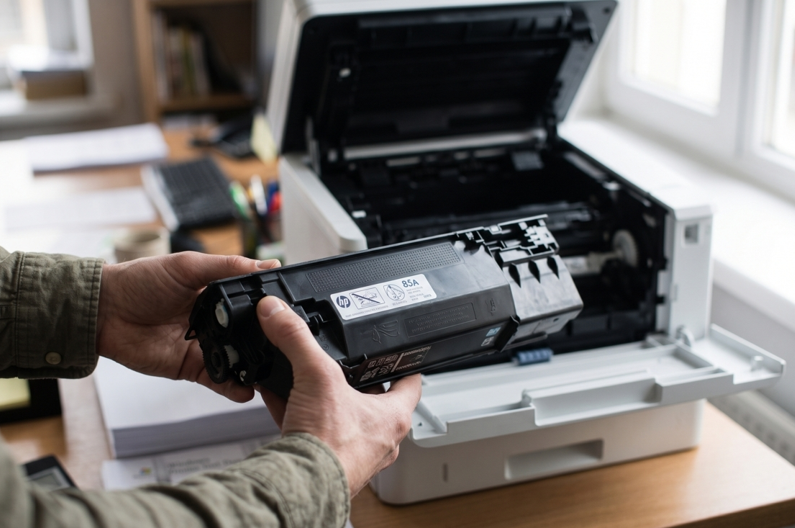
Switch off the printer and open the cover. Remove the cartridge and check it for damage or leaks. Make sure any protective tape is gone. Slide it back in until it clicks, then close the cover fully.
Fix 4: Run the Cleaning Function
Most HP printers have a built-in cleaning page in the maintenance or tools menu. Run it once. Then print a test page. Don’t repeat it again and again. If one or two cycles don’t help, something else is wrong.
Fix 5: Check Your Paper
Damp or cheap paper leaves smudges and spots. Use fresh, dry paper. Store it flat, in its wrapper. And make sure the paper type in your settings matches what you loaded.
Fix 6: Clean Inside the Printer
Switch off and unplug the printer. Let it cool if you’ve just been printing, since the fuser gets very hot. Use a dry, lint-free cloth to wipe dust from the paper path. Don’t use water or sprays. And never touch the drum surface with your fingers. Skin oils leave marks.
Fix 7: Print a Test Page From the Printer
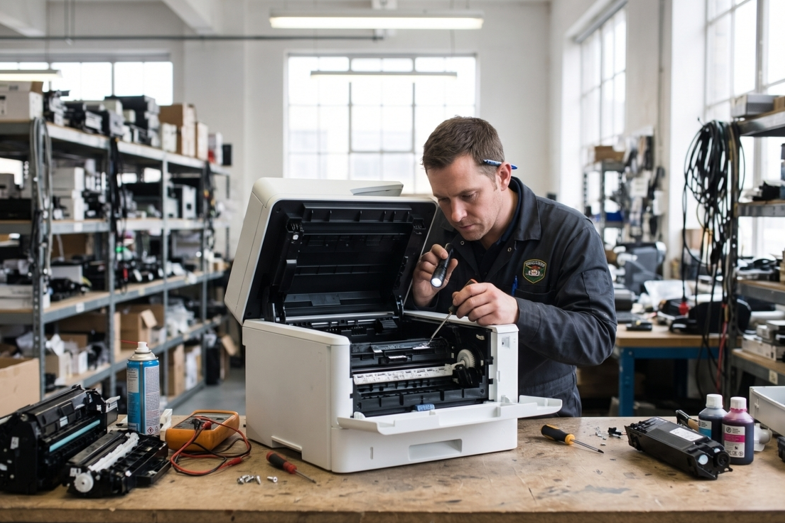
Print a test page straight from the printer, not from your computer. If it looks fine, the problem is in your file or settings. If it still has streaks, the cause is inside the machine. That usually means a worn drum, transfer roller or fuser. A trusted HP printer repair in Dubai service can test those parts and replace what’s worn, so you don’t keep buying cartridges that can’t fix it.
Why Cheap Toner Can Make It Worse
It’s tempting to grab the cheapest box. But very cheap toner can leak. It can print unevenly. It can leave grey backgrounds and faint text. Then you waste paper trying to fix it. A cartridge from a supplier you trust is usually worth it, even if it costs a bit more upfront.
Always match the cartridge to your exact printer model. Check the toner number in the manual, or on the old cartridge.
Habits That Keep Prints Clean
- Print a few pages every week
- Use good-quality paper
- Keep the printer in a cool, dry, dust-free place
- Replace toner when the first warning appears
- Keep spare cartridges sealed, in a cool spot
- Handle cartridges by their handles
None of this takes long. And it saves a lot of reprinting.
Mistakes to Avoid
- Running the cleaning cycle ten times in a row
- Touching the drum or fuser
- Using water or spray cleaners inside the printer
- Ignoring streaks that keep coming back
- Buying a cartridge without checking the model
- Opening the printer without training
When Should You Get Extra Help?
Call a technician if:
- Streaks stay after a new cartridge and a clean
- The same mark repeats down every page
- Prints stay faded even with fresh toner
- You hear grinding or clicking
- You smell something burning
Please don’t take the printer apart yourself. The fuser is hot, and small parts break easily.
Final Thoughts
Streaks and faded prints look bad, but the cause is usually simple. Low toner. A tired cartridge. Dust. Damp paper. Start with the easy checks and work down the list. Use the right cartridge and keep the printer clean. If the marks won’t go away, get it checked. Then you can get back to printing pages you’re proud of.